IPTV Nordic Installations guide

Välj din enhet nedan och följ stegen — kom igång med IPTV Nordic på under 3 minuter.

📺 Samsung / LG Smart TV — Installationsguide

  1. 1Öppna appbutiken på din TV — Samsung Smart Hub (Samsung) eller LG Content Store (LG).
  2. 2Sök efter och installera Smart IPTV eller Flix IPTV.
  3. 3Starta appen och notera din MAC-adress som visas på skärmen.
  4. 4Gå till siptv.eu/mylist på din mobil eller dator.
  5. 5Ange din MAC-adress och M3U-länk (från IPTV Nordic) och ladda upp spellistan.
  6. 6Starta om appen på TV:n — alla IPTV Nordic-kanaler visas automatiskt.
  7. 7Behöver du hjälp? Kontakta oss på WhatsApp — vi svarar inom minuter.

🔥 Fire TV Stick / Android TV — Installationsguide

  1. 1Öppna Google Play Butik (Android TV) eller Amazon Appstore (Fire TV Stick).
  2. 2Sök efter och installera TiviMate eller IPTV Smarters Pro.
  3. 3Öppna appen och välj "Xtream Codes" som inloggningsmetod.
  4. 4Ange Server URL, användarnamn och lösenord som du fått av IPTV Nordic och spara.
  5. 5Starta om appen — alla kanaler och filmer laddas automatiskt.
  6. 6Problem? WhatsApp-support dygnet runt.

📦 Formuler Z Box — Installationsguide

  1. 1Starta din Formuler Z Box och öppna MYTVOnline 2.
  2. 2Välj "Lägg till portal" i huvudmenyn.
  3. 3Ange den portal-URL du fått av IPTV Nordic.
  4. 4Spara inställningarna och starta om appen.
  5. 5Alla IPTV Nordic-kanaler laddas automatiskt — klart!
  6. 6Frågor? Skriv till oss på WhatsApp.

📡 MAG Box — Installationsguide

  1. 1Anslut din MAG Box till TV och internet via kabel eller WiFi.
  2. 2Navigera till Inställningar → Systeminställningar → Server → Portaler.
  3. 3Ange Portal 1 URL som du fått av IPTV Nordic.
  4. 4Spara och starta om boxen.
  5. 5Kanalerna laddas automatiskt efter omstart — njut av IPTV Nordic!
  6. 6Behöver du hjälp? Kontakta oss på WhatsApp.

🍎 iPhone / iPad — Installationsguide

  1. 1Öppna App Store och sök efter IPTV Smarters Pro eller GSE Smart IPTV.
  2. 2Installera och öppna appen.
  3. 3Välj "Xtream Codes" och ange Server URL, användarnamn och lösenord från IPTV Nordic.
  4. 4Spara — alla IPTV Nordic-kanaler och VOD visas automatiskt.
  5. 5Problem? Kontakta oss på WhatsApp — vi hjälper direkt.

💻 Windows / Mac — Installationsguide

  1. 1Ladda ned VLC Media Player från videolan.org eller IPTV Smarters Pro från Microsoft Store.
  2. 2Installera och öppna programmet.
  3. 3(VLC) Klicka på Media → Öppna nätverksström och klistra in din M3U-länk.
  4. 4(IPTV Smarters) Välj "Xtream Codes" och ange Server URL, användarnamn och lösenord från IPTV Nordic.
  5. 5Starta uppspelning — alla IPTV Nordic-kanaler är nu tillgängliga.
  6. 6Frågor? WhatsApp-support dygnet runt.

📱 Android / Surfplatta — Installationsguide

  1. 1Öppna Google Play Butik och sök efter IPTV Smarters Pro eller TiviMate.
  2. 2Installera och öppna appen.
  3. 3Välj "Xtream Codes" och ange Server URL, användarnamn och lösenord från IPTV Nordic.
  4. 4Spara — alla IPTV Nordic-kanaler och filmer visas direkt. Klart!
  5. 5Behöver du hjälp? Skriv till oss på WhatsApp.
Stödda appar & spelare för IPTV Nordic
📺 TiviMate 📺 IPTV Smarters Pro 📺 GSE Smart IPTV 📺 IBO Player 📺 Smart IPTV 📺 Flix IPTV 📺 VLC Media Player 📺 XCIPTV
✅ Och många fler appar stöds!

Vanliga frågor & problem vid IPTV Nordic-installation

Appen finns inte i App Store eller appbutiken?
→ Kontrollera att din enhet är inställd på rätt land. Vissa appar är regionsbegränsade. Prova IPTV Smarters Pro eller TiviMate som alternativ. På Android och FireStick kan du även installera en APK-fil direkt.
Appen kräver licens eller aktivering?
→ Appar som Smart IPTV och TiviMate kan kräva en engångsavgift (ca 5–15€). Detta är en kostnad till app-utvecklaren och är helt separat från ditt IPTV Nordic-abonnemang.
Kanaler visas inte efter inloggning?
→ Kontrollera att du angett korrekt Server URL, användarnamn och lösenord. Logga ut och logga in igen. Kontakta oss på WhatsApp om problemet kvarstår.
Kanaler laddas men inget ljud eller bild?
→ Vanlig orsak är långsam internetanslutning eller saknade codecs. Testa en annan kanal, uppdatera appen och kontrollera att din uppkoppling är stabil (minst 25 Mbps för 4K).
Fel "URL inte tillgänglig" eller "Fel vid laddning av spellista"?
→ Kontrollera att Server URL är kopierad exakt utan extra mellanslag. Kopiera helst via dator för att undvika fel. Kontakta oss om du är osäker på dina uppgifter.
Kan jag använda IPTV Nordic på flera enheter samtidigt?
→ Ett standardabonnemang gäller för 1 enhet åt gången. För 2 eller 3 skärmar simultant behöver du ett Multi-Screen-abonnemang. Kontakta oss för mer information.
Hur uppdaterar jag min spellista eller byter inloggningsuppgifter?
→ Logga ut ur appen och logga in på nytt med dina uppdaterade uppgifter. Kontakta oss på WhatsApp om du behöver hjälp.
Fler frågor eller tekniska problem?
Kontakta IPTV Nordic direkt på WhatsApp — vi hjälper dig omedelbart!

IPTV Nordic – Kom igång på under 3 minuter

Välj din enhet och följ den enkla installationsguiden för Beast TV.

Behöver du hjälp? Chatta med oss

 
USING XCIPTV
  1. Download XCIPTV from the Playstore.
  2. Open the app.
  3. Choose Xtream Codes API.
  4. Enter the username, password and API URL received by email.
  5. Enjoy .
USING IPTV SMARTERS PRO

1. We will first install the Downloader app

This app will help you sideload IPTV Smarters (because browser downloads are not allowed)

2. Click the Find > Search option on the home screen of FireStick
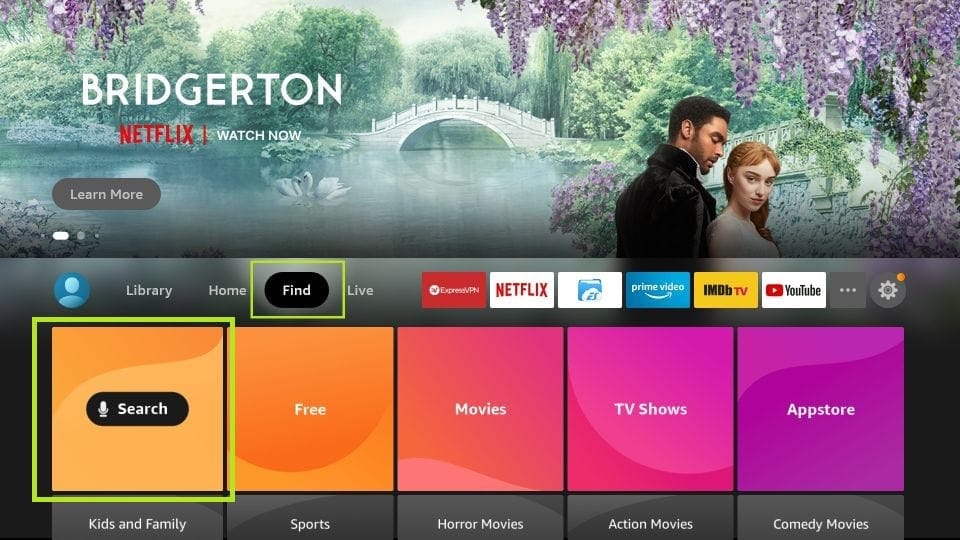
IPTV Nordic Installation

3. Type the name of the app (which is Downloader)
Click the Downloader option when it is displayed in the search results
Choose the Downloader icon on the following screen and download and install the app
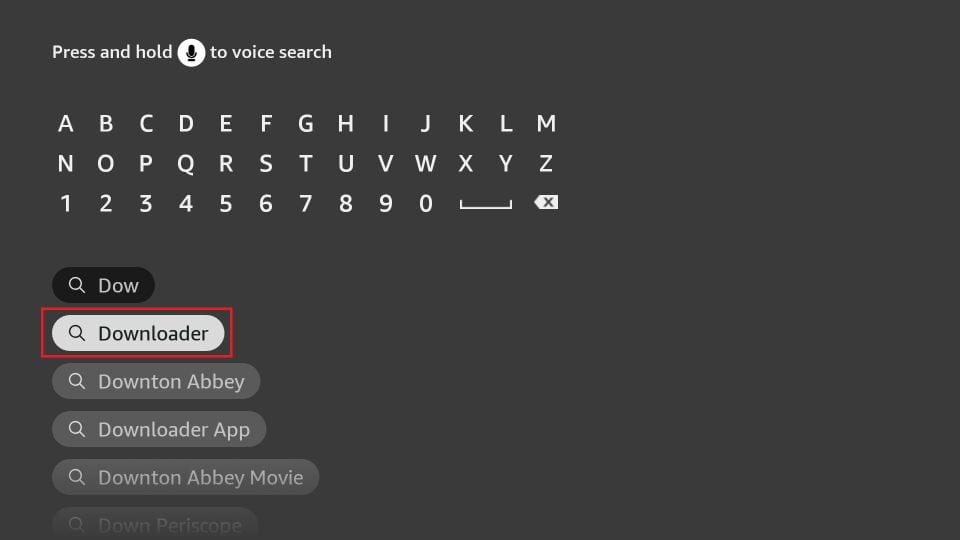
IPTV Nordic Installation

4. Get back to the home screen of FireStick after installing the Downloader app

In the menu bar, click Settings
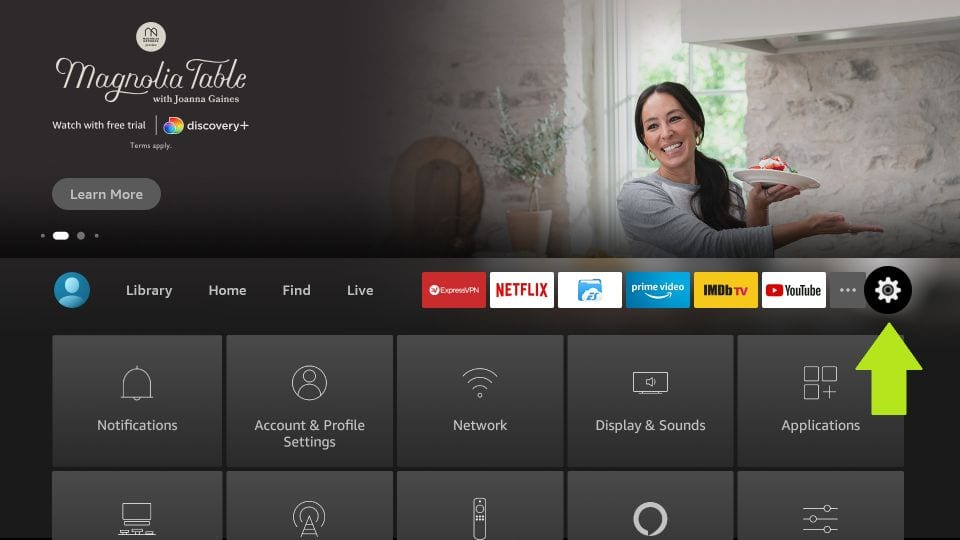
IPTV Nordic Installation

5. In the Settings, choose the option My Fire TV
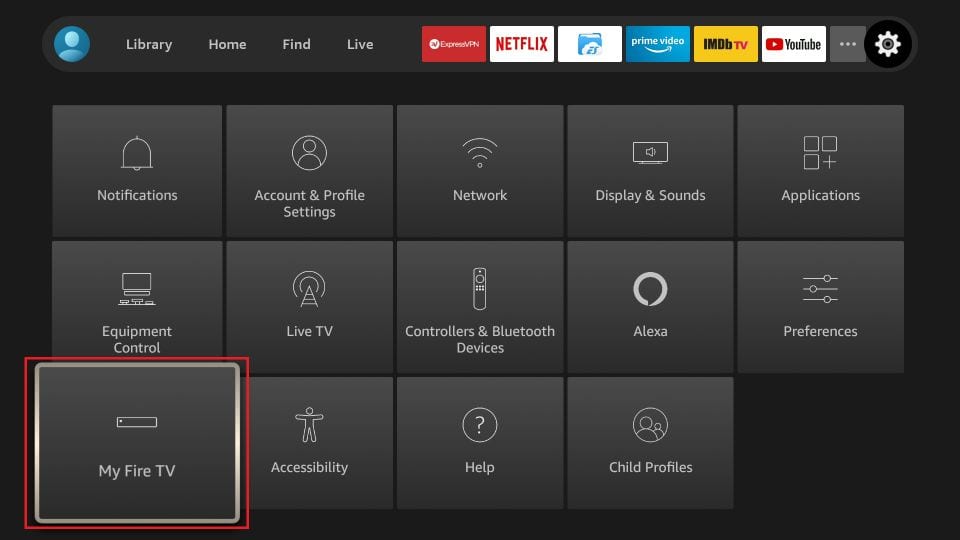
iptv smarters

6. When the following set of options are displayed on the next screen, click Developer Options
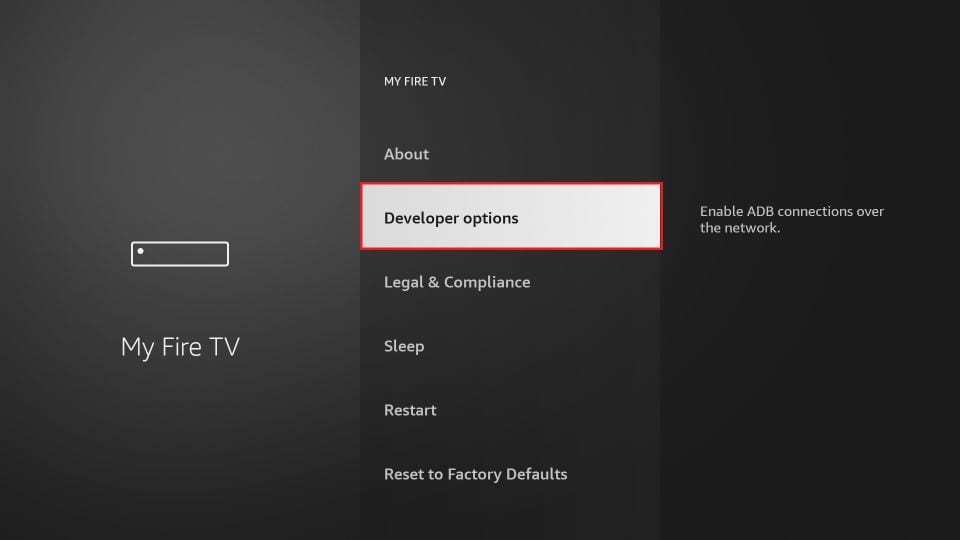
iptv smarters for Firestick

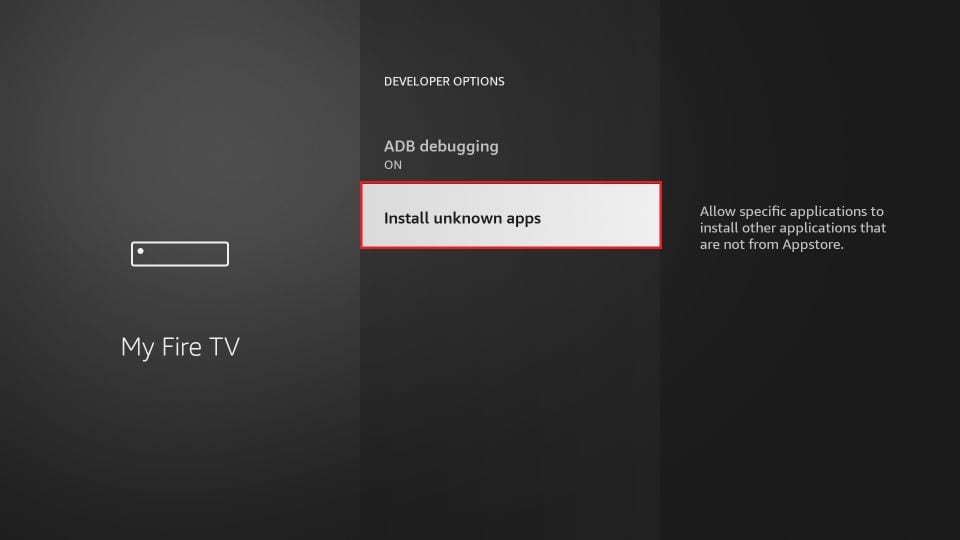
7. Click Install from unknown apps

download iptv smarters on Firestick

8. Click Downloader to change the status to ON
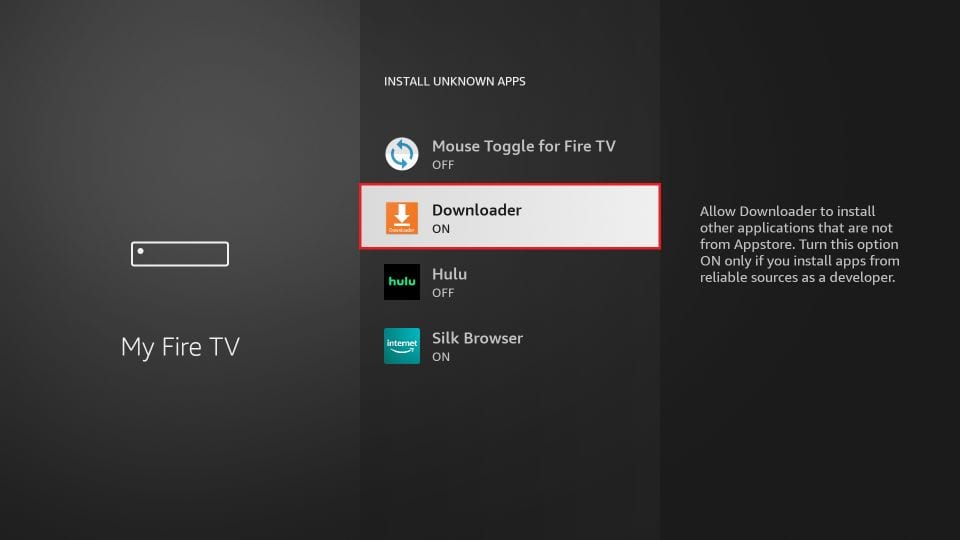
iptv smarters

With this, you have configured the FireStick settings to allow the installation of IPTV Smarters and other third-party apps. Follow the steps below:

9. You may now open the Downloader app
When you run this app for the first time, a set of prompts will appear. Dismiss them until you see the following screen

On this screen, you need to click the URL textbox on the right side (make sure Home option in the left menu is selected) where it says ‘http://’
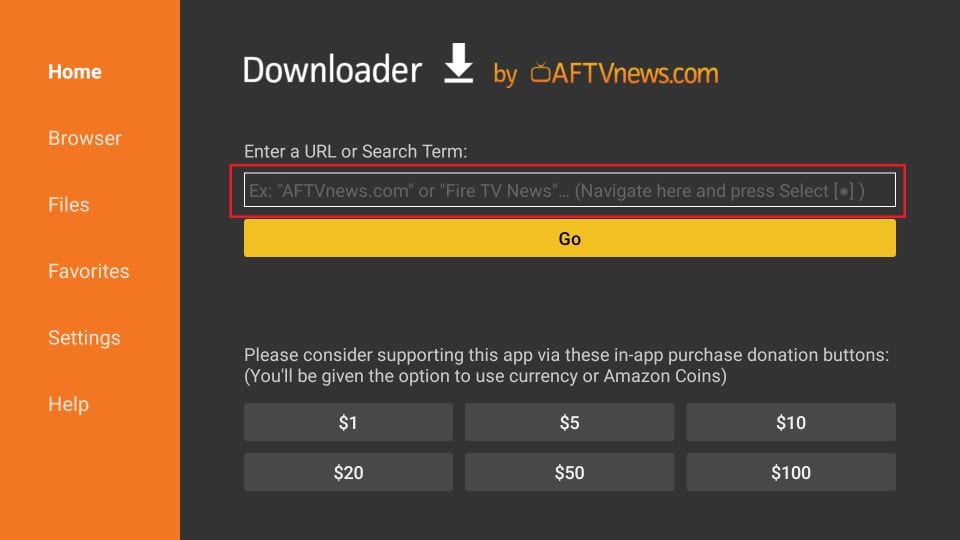
how to get iptv smarters on amazon Firestick

10. Go ahead and enter the following code on this window: 
78522

Note: You may also use the shortened version of the URL iptvsmarters.com/smarters.apk

Click GO
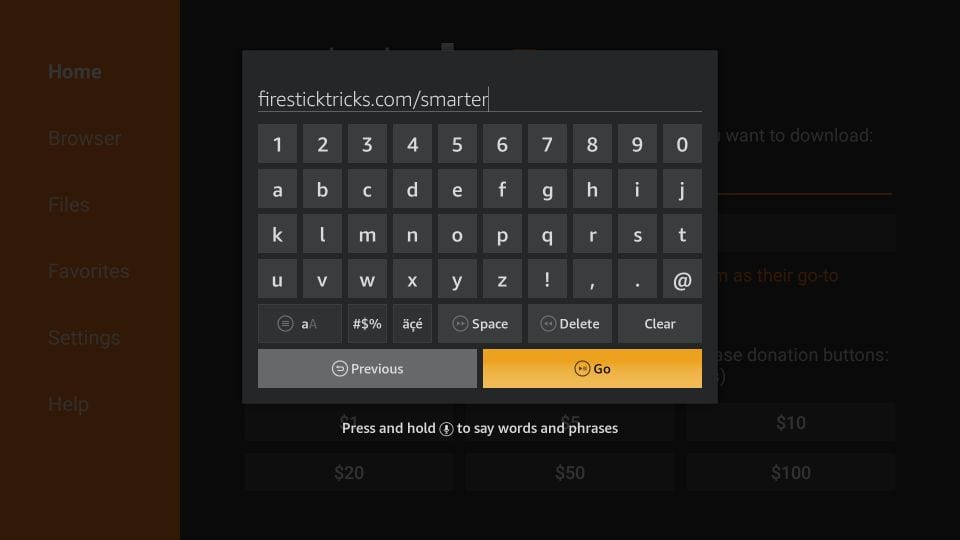
how to install iptv smarters on Firestick

11. Give it a minute or two until the IPTV Smarter is downloaded onto your FireStick device
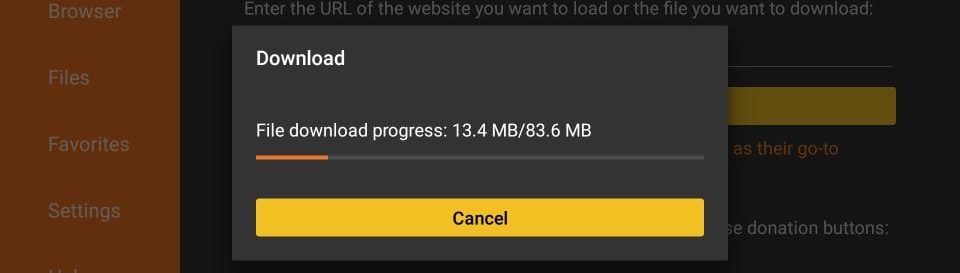
iptv smarters download

12. When the download has completed, the Downloader app will run the APK file and the installation will start

Click Install
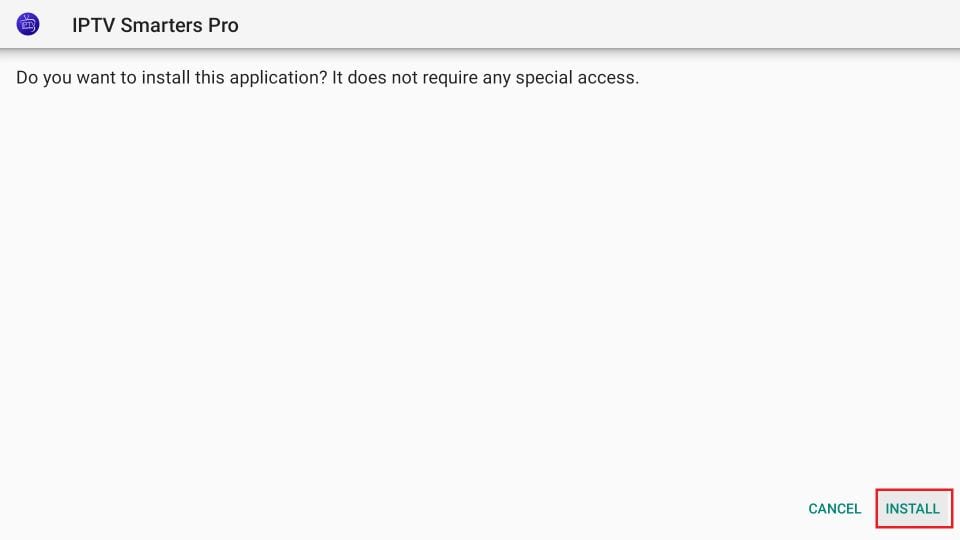
steps to install iptv smarters

13. Wait for the installation to finish
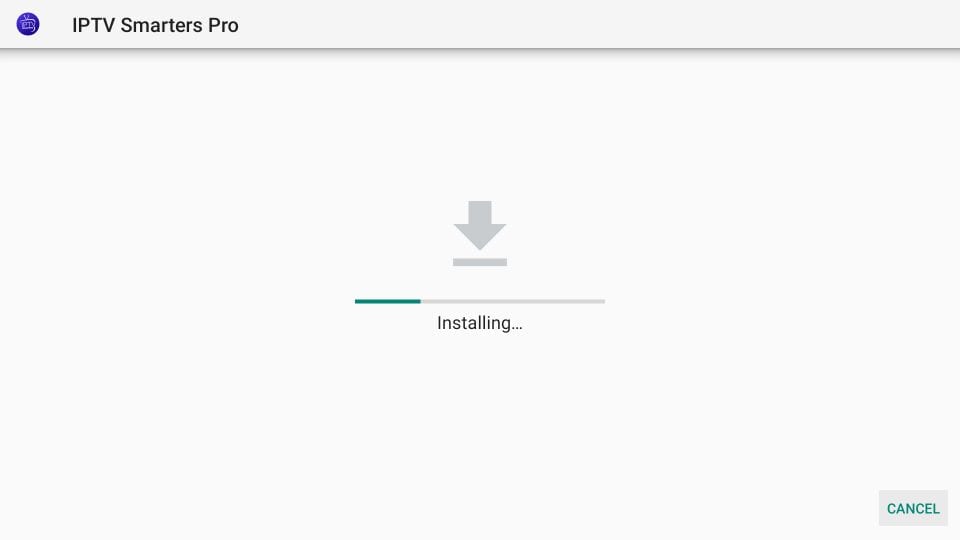
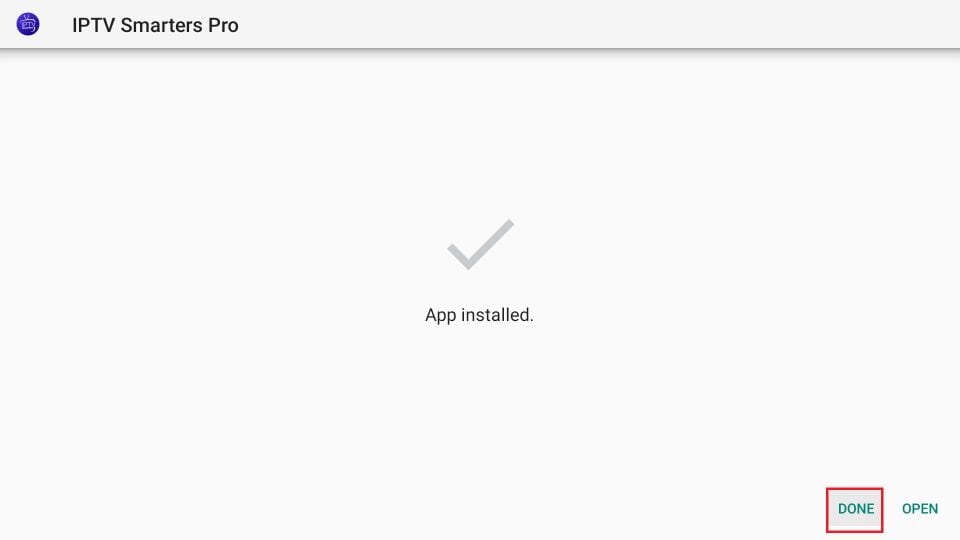
how to use iptv smarters on Firestick14. Installation is concluded with the App installed notification

You may now choose to click OPEN and get started with IPTV Smarters
IPTV Nordic Installation

14. Now all you need to do is log in using the xtream code we sent you.

USING TIVIMATE IPTV PLAYER
  1. Go to Play store
  2. Search for Tivimate IPTV Player and download it.
  3. Open the app
  4. Click on Add playlist
  5. Insert your  IPTV subscription Xtream code.
  6. Click on Okay and wait for the Channels to load.
USING SMART ONE IPTV

You will need to use the controller app named “Smart One IPTV” to proceed. You can get it for seven days for free. Then you can make a one-time fee of 10$ approximately and start using it.

  1. Download the Smart One Iptv app from the store
  2. Once you download the Smart IPTV app, launch it.
  3. Keep a note of MAC Address that you can see on the screen.
  4. Now visit this page.
  5. Navigate to the section named as “From m3u Playlist URL”. You need to enter the MAC address in here. You should also include your unique IPTV subscription URL (sent to you by email after your subscription) under the field called M3u.
  6. Now click on generate.
  7. Restart the app and you should see the channels.
 
USING SMART IPTV

The procedure is nearly the same as Smart One IPTV.

USING IPTV SMARTERS PRO
  1. This app is our number one recommendation.
    Télécharger IPTV Smarters Pro sur Android avec l'APK
  2. You can download it from here  
  3. Just login using the xtream code sent to you by email and you’re good to go.

Using MYIPTV Player

  1. From the windows store download MyIPTVPlayer.
  2. Go to Settings, then select add new playlist.
  3. In the Remote Channel List section enter any name as the list name, and paste the url we provided by email in the url field.
  4. Go back to Settings and select the channel playlist you just added.
  5. Go to the channels section and enjoy.
Using Perfect Player
  1. Download the m3u link we sent by email.
  2. Open the download file using Perfect player.

Connect your MAG Device to internet then follow the below steps.

  1. Navigate to Settings, System Settings, Servers and Portals.
  2. Set IPTV Beast as Portal 1
  3. Enter the URL in your email to Portal 1 URL section.
  4. Leave the name of Portal 2 to empty.
  5. Leave the URL of portal 2 to empty.
  6. Save.
  7. Restart.
  8. Now you will be able to see the list of channels.
USING IPTV SMARTERS PRO
  1. This app is our number one recommendation.Télécharger IPTV Smarters Pro sur Android avec l'APK
  2. You can download it from the store. 
  3. If you don’t find it in the store please download it from here
  4. Once installed, select login via Xtream codes API (XC API), and then login using the username, password and url we sent you.
USING CLOUD STREAM IPTV PLAYER
  1. Go to App Store and download Cloud Stream IPTV Player.
  2. Open the App.
  3. On the upper left corner click on the “dashes” icon.
  4. In the down left corner click on the “+” sign
  5. Click on load m3u file
  6. Click on load m3u from web
  7. Add the IPTV subscription URL that we sent you in your Email.
USING IPLAY TV
  1. Go to App Store and download iPlay TV.
  2. Upload the IPTV subscription URL link that we sent you.
  3. Now you will be able to see the playlist.
USING GSE SMART IPTV PRO
  1. Go to App Store and download GSE SMART IPTV pro.
  2. Accept the EULA Rule.
  3. Select settings on the left hand corner.
  4. Locate the menu called “Remote Playlists”
  5. Select the button named as “+”
  6. Enter your IPTV subscription URL via selecting add m3u url.
USING KODI KRYOPTON 17
  1. Launch Kodi app
  2. In the left menu click on TV
  3. Click on Add-on browser.
  4. Click on PVR IPTV Simple Client
  5. Click on Configure
  6. Select General
  7. Enter the IPTV subscription URL.
  8. Wait for some time until you get the notifications loaded.

  • This tutorial will help you to get a better understanding on how to watch IPTV on your STB Emulator. The following Set-top boxes are compatible with it.‘STB Emulator’ can emulate the following IPTV set-top boxes.

    MAG 200

    MAG 245

    MAG 250

    MAG 260

    MAG 270

    MAG 275

    Aura HD

    1. As the first thing, you should visit Google Play Store and download STB Emulator.
    2. You need to install STB Emulator and open it. You can now see a section called Mac Address.
    3. You need to click on “Settings”, which is located near top right hand corner.
    4. Next you need to visit Profiles.
    5. You should now click on Test Portal. Then you can “Add Profile”.
    6. Click on the “STB Model”.
    7. Select your STB Model.
    8. Go to Portal Settings.
    9. Now you can enter the Portal Email, which should have come to your email inbox.
    10. Now you need to select on Screen Resolution.
    11. For the screen resolution, pick 1280 x 720
    12. Exist the app and restart it.
    13. You can now see the list of channels.
      1. You need to visit Enigma 2 to get the address

      You can navigate to Settings, Setup, System Network Device Adapter Settings. Then you can copy the IP address.

      1. Come back to your PC and download software called Putty.
      2. You should now open PUTTY and follow the below steps.
      3. Enter the IP address that you have copied and Port as 23. Connection type should be Telnet. You can now click on Open.
      4. The default password should be set to root.
      5. You will need to copy the URL line.
      6. Use the right mouse button and then enter.
      7. Type reboot on the screen and enter. This will restart.